


- Getting Started
- Hardware
- Software
- Brick Daemon (brickd)
- Brick Viewer (brickv)
- Brick Logger
- API Bindings
- C/C++
- C/C++ (iOS)
- C/C++ for Microcontrollers
- C#
- C# (Windows Phone)
- Delphi/Lazarus
- Go
- Java
- Java (Android)
- JavaScript
- LabVIEW
- Mathematica
- MATLAB/Octave
- MQTT
- openHAB
- Perl
- PHP
- Python
- Ruby
- Requirements
- Installation
- Testing an Example
- API Reference and Examples
- IP Connection
- Bricks
- Bricks (Discontinued)
- Bricklets
- Bricklets (Discontinued)
- Accelerometer Bricklet
- Ambient Light Bricklet
- Ambient Light Bricklet 2.0
- Analog In Bricklet
- Analog In Bricklet 2.0
- Analog Out Bricklet
- Analog Out Bricklet 2.0
- CO2 Bricklet
- Current12 Bricklet
- Current25 Bricklet
- Distance US Bricklet
- Dual Button Bricklet
- Dual Relay Bricklet
- GPS Bricklet
- Humidity Bricklet
- Industrial Analog Out Bricklet
- Industrial Digital In 4 Bricklet
- Industrial Dual Analog In Bricklet
- Industrial Quad Relay Bricklet
- IO-4 Bricklet
- Laser Range Finder Bricklet
- LCD 16x2 Bricklet
- LED Strip Bricklet
- Load Cell Bricklet
- Moisture Bricklet
- Motion Detector Bricklet
- NFC/RFID Bricklet
- OLED 128x64 Bricklet
- Piezo Buzzer Bricklet
- PTC Bricklet
- PTC Bricklet 2.0
- Remote Switch Bricklet
- RGB LED Bricklet
- RGB LED Matrix Bricklet
- Rotary Encoder Bricklet
- Solid State Relay Bricklet
- Temperature IR Bricklet
- Thermocouple Bricklet
- UV Light Bricklet
- Voltage Bricklet
- Voltage/Current Bricklet
- Rust
- Shell
- Visual Basic .NET
- ESP32 Firmware
- APT Repository
- Device Identifier
- Source Code and Bug Tracking
- Programming Interface
- Kits
- Embedded Boards
- Specifications
Ruby - OLED 128x64 Bricklet
This is the description of the Ruby API bindings for the OLED 128x64 Bricklet. General information and technical specifications for the OLED 128x64 Bricklet are summarized in its hardware description.
An installation guide for the Ruby API bindings is part of their general description.
Examples
The example code below is Public Domain (CC0 1.0).
Hello World
Download (example_hello_world.rb)
 1#!/usr/bin/env ruby
 2# -*- ruby encoding: utf-8 -*-
 3
 4require 'tinkerforge/ip_connection'
 5require 'tinkerforge/bricklet_oled_128x64'
 6
 7include Tinkerforge
 8
 9HOST = 'localhost'
10PORT = 4223
11UID = 'XYZ' # Change XYZ to the UID of your OLED 128x64 Bricklet
12
13ipcon = IPConnection.new # Create IP connection
14oled = BrickletOLED128x64.new UID, ipcon # Create device object
15
16ipcon.connect HOST, PORT # Connect to brickd
17# Don't use device before ipcon is connected
18
19# Clear display
20oled.clear_display
21
22# Write "Hello World" starting from upper left corner of the screen
23oled.write_line 0, 0, 'Hello World'
24
25puts 'Press key to exit'
26$stdin.gets
27ipcon.disconnect
Pixel Matrix
Download (example_pixel_matrix.rb)
 1#!/usr/bin/env ruby
 2# -*- ruby encoding: utf-8 -*-
 3
 4require 'tinkerforge/ip_connection'
 5require 'tinkerforge/bricklet_oled_128x64'
 6
 7include Tinkerforge
 8
 9HOST = 'localhost'
10PORT = 4223
11UID = 'XYZ' # Change XYZ to the UID of your OLED 128x64 Bricklet
12WIDTH = 128 # Columns (each 1 pixel wide)
13HEIGHT = 8 # Rows (each 8 pixels high)
14
15def draw_matrix(oled, start_column, start_row, column_count, row_count, pixels)
16  pages = []
17
18  # Convert pixel matrix into 8bit pages
19  for row in 0..row_count - 1
20    pages[row] = []
21
22    for column in 0..column_count - 1
23      pages[row][column] = 0
24
25      for bit in 0..7
26        if pixels[row * 8 + bit][column]
27          pages[row][column] |= 1 << bit
28        end
29      end
30    end
31  end
32
33  # Merge page matrix into single page array
34  data = []
35
36  for row in 0..row_count - 1
37    for column in 0..column_count - 1
38      data.push pages[row][column]
39    end
40  end
41
42  # Set new window
43  oled.new_window start_column, start_column + column_count - 1, \
44                  start_row, start_row + row_count - 1
45
46  # Write page data in 64 byte blocks
47  for i in (0..data.length - 1).step(64)
48    block = data[i, 64]
49    oled.write block.fill(0, block.length, 64 - block.length)
50  end
51end
52
53ipcon = IPConnection.new # Create IP connection
54oled = BrickletOLED128x64.new UID, ipcon # Create device object
55
56ipcon.connect HOST, PORT # Connect to brickd
57# Don't use device before ipcon is connected
58
59# Clear display
60oled.clear_display
61
62# Draw checkerboard pattern
63pixels = []
64
65for row in 0..HEIGHT * 8 - 1
66  pixels[row] = []
67
68  for column in 0..WIDTH - 1
69    pixels[row][column] = (row / 8) % 2 == (column / 8) % 2
70  end
71end
72
73draw_matrix oled, 0, 0, WIDTH, HEIGHT, pixels
74
75puts 'Press key to exit'
76$stdin.gets
77ipcon.disconnect
Scribble
Download (example_scribble.rb)
 1#!/usr/bin/env ruby
 2# -*- ruby encoding: utf-8 -*-
 3
 4require 'rgd'
 5require 'tinkerforge/ip_connection'
 6require 'tinkerforge/bricklet_oled_128x64'
 7
 8include Tinkerforge
 9
10HOST = 'localhost'
11PORT = 4223
12UID = 'XYZ' # Change XYZ to the UID of your OLED 128x64 Bricklet
13WIDTH = 128 # Columns (each 1 pixel wide)
14HEIGHT = 8 # Rows (each 8 pixels high)
15
16def draw_image(oled, start_column, start_row, column_count, row_count, image)
17  pages = []
18
19  # Convert image pixels into 8bit pages
20  for row in 0..row_count - 1
21    pages[row] = []
22
23    for column in 0..column_count - 1
24      pages[row][column] = 0
25
26      for bit in 0..7
27        index = image[column, (row * 8) + bit]
28        rgba = image.rgba index
29
30        if rgba[0] > 0
31          pages[row][column] |= 1 << bit
32        end
33      end
34    end
35  end
36
37  # Merge page matrix into single page array
38  data = []
39
40  for row in 0..row_count - 1
41    for column in 0..column_count - 1
42      data.push pages[row][column]
43    end
44  end
45
46  # Set new window
47  oled.new_window start_column, start_column + column_count - 1, \
48                  start_row, start_row + row_count - 1
49
50  # Write page data in 64 byte blocks
51  for i in (0..data.length - 1).step(64)
52    block = data[i, 64]
53    oled.write block.fill(0, block.length, 64 - block.length)
54  end
55end
56
57ipcon = IPConnection.new # Create IP connection
58oled = BrickletOLED128x64.new UID, ipcon # Create device object
59
60ipcon.connect HOST, PORT # Connect to brickd
61# Don't use device before ipcon is connected
62
63# Clear display
64oled.clear_display
65
66# Draw checkerboard pattern
67image = RGD::Image.create WIDTH, HEIGHT * 8
68black = image.color_allocate 0, 0, 0
69white = image.color_allocate 255, 255, 255
70origin_x = WIDTH / 2
71origin_y = HEIGHT * 8 / 2
72length = HEIGHT * 8 / 2 - 2
73angle = 0
74
75puts 'Press key to exit'
76
77Thread.new do
78  $stdin.gets
79  exit
80end
81
82while true
83    radians = Math::PI * angle / 180.0
84    x = (origin_x + length * Math.cos(radians)).to_i
85    y = (origin_y + length * Math.sin(radians)).to_i
86
87    image.filled_rectangle 0, 0, WIDTH, HEIGHT * 8, black
88    image.line origin_x, origin_y, x, y, white
89
90    draw_image oled, 0, 0, WIDTH, HEIGHT, image
91    sleep 0.025
92
93    angle += 1
94end
API
All functions listed below are thread-safe.
Basic Functions
- BrickletOLED128x64::new(uid, ipcon) oled_128x64
Parameters: - uid – Type: str
- ipcon – Type: IPConnection
Returns: - oled_128x64 – Type: BrickletOLED128x64
Creates an object with the unique device ID
uid:oled_128x64 = BrickletOLED128x64.new 'YOUR_DEVICE_UID', ipcon
This object can then be used after the IP Connection is connected.
- BrickletOLED128x64#write(data) nil
Parameters: - data – Type: [int, ...], Length: 64, Range: [0 to 255]
Appends 64 byte of data to the window as set by
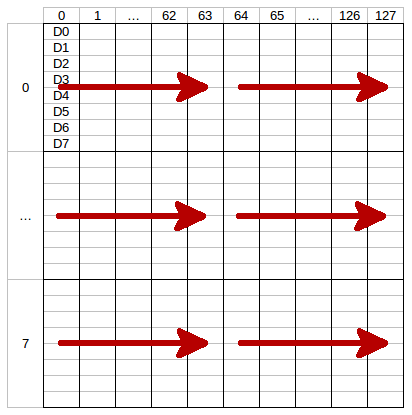
#new_window.Each row has a height of 8 pixels which corresponds to one byte of data.
Example: if you call
#new_windowwith column from 0 to 127 and row from 0 to 7 (the whole display) each call of#write(red arrow) will write half of a row.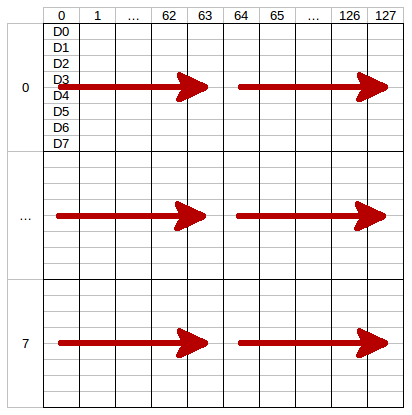
The LSB (D0) of each data byte is at the top and the MSB (D7) is at the bottom of the row.
The next call of
#writewill write the second half of the row and the next two the second row and so on. To fill the whole display you need to call#write16 times.
- BrickletOLED128x64#new_window(column_from, column_to, row_from, row_to) nil
Parameters: - column_from – Type: int, Range: [0 to 127]
- column_to – Type: int, Range: [0 to 127]
- row_from – Type: int, Range: [0 to 7]
- row_to – Type: int, Range: [0 to 7]
Sets the window in which you can write with
#write. One row has a height of 8 pixels.
- BrickletOLED128x64#clear_display nil
Clears the current content of the window as set by
#new_window.
- BrickletOLED128x64#write_line(line, position, text) nil
Parameters: - line – Type: int, Range: [0 to 7]
- position – Type: int, Range: [0 to 25]
- text – Type: str, Length: up to 26
Writes text to a specific line with a specific position. The text can have a maximum of 26 characters.
For example: (1, 10, "Hello") will write Hello in the middle of the second line of the display.
You can draw to the display with
#writeand then add text to it afterwards.The display uses a special 5x7 pixel charset. You can view the characters of the charset in Brick Viewer.
The font conforms to code page 437.
Advanced Functions
- BrickletOLED128x64#set_display_configuration(contrast, invert) nil
Parameters: - contrast – Type: int, Range: [0 to 255], Default: 143
- invert – Type: bool, Default: false
Sets the configuration of the display.
You can set a contrast value from 0 to 255 and you can invert the color (black/white) of the display.
- BrickletOLED128x64#get_display_configuration [int, bool]
Return Array: - 0: contrast – Type: int, Range: [0 to 255], Default: 143
- 1: invert – Type: bool, Default: false
Returns the configuration as set by
#set_display_configuration.
- BrickletOLED128x64#get_identity [str, str, chr, [int, ...], [int, ...], int]
Return Array: - 0: uid – Type: str, Length: up to 8
- 1: connected_uid – Type: str, Length: up to 8
- 2: position – Type: chr, Range: ['a' to 'h', 'z']
- 3: hardware_version – Type: [int, ...], Length: 3
- 0: major – Type: int, Range: [0 to 255]
- 1: minor – Type: int, Range: [0 to 255]
- 2: revision – Type: int, Range: [0 to 255]
- 4: firmware_version – Type: [int, ...], Length: 3
- 0: major – Type: int, Range: [0 to 255]
- 1: minor – Type: int, Range: [0 to 255]
- 2: revision – Type: int, Range: [0 to 255]
- 5: device_identifier – Type: int, Range: [0 to 216 - 1]
Returns the UID, the UID where the Bricklet is connected to, the position, the hardware and firmware version as well as the device identifier.
The position can be 'a', 'b', 'c', 'd', 'e', 'f', 'g' or 'h' (Bricklet Port). A Bricklet connected to an Isolator Bricklet is always at position 'z'.
The device identifier numbers can be found here. There is also a constant for the device identifier of this Bricklet.
Virtual Functions
Virtual functions don't communicate with the device itself, but operate only on the API bindings device object. They can be called without the corresponding IP Connection object being connected.
- BrickletOLED128x64#get_api_version [int, ...]
Return Array: - 0: api_version – Type: [int, ...], Length: 3
- 0: major – Type: int, Range: [0 to 255]
- 1: minor – Type: int, Range: [0 to 255]
- 2: revision – Type: int, Range: [0 to 255]
Returns the version of the API definition implemented by this API bindings. This is neither the release version of this API bindings nor does it tell you anything about the represented Brick or Bricklet.
- BrickletOLED128x64#get_response_expected(function_id) bool
Parameters: - function_id – Type: int, Range: See constants
Returns: - response_expected – Type: bool
Returns the response expected flag for the function specified by the function ID parameter. It is true if the function is expected to send a response, false otherwise.
For getter functions this is enabled by default and cannot be disabled, because those functions will always send a response. For callback configuration functions it is enabled by default too, but can be disabled by
#set_response_expected. For setter functions it is disabled by default and can be enabled.Enabling the response expected flag for a setter function allows to detect timeouts and other error conditions calls of this setter as well. The device will then send a response for this purpose. If this flag is disabled for a setter function then no response is sent and errors are silently ignored, because they cannot be detected.
The following constants are available for this function:
For function_id:
BrickletOLED128x64::FUNCTION_WRITE = 1
BrickletOLED128x64::FUNCTION_NEW_WINDOW = 2
BrickletOLED128x64::FUNCTION_CLEAR_DISPLAY = 3
BrickletOLED128x64::FUNCTION_SET_DISPLAY_CONFIGURATION = 4
BrickletOLED128x64::FUNCTION_WRITE_LINE = 6
- BrickletOLED128x64#set_response_expected(function_id, response_expected) nil
Parameters: - function_id – Type: int, Range: See constants
- response_expected – Type: bool
Changes the response expected flag of the function specified by the function ID parameter. This flag can only be changed for setter (default value: false) and callback configuration functions (default value: true). For getter functions it is always enabled.
Enabling the response expected flag for a setter function allows to detect timeouts and other error conditions calls of this setter as well. The device will then send a response for this purpose. If this flag is disabled for a setter function then no response is sent and errors are silently ignored, because they cannot be detected.
The following constants are available for this function:
For function_id:
BrickletOLED128x64::FUNCTION_WRITE = 1
BrickletOLED128x64::FUNCTION_NEW_WINDOW = 2
BrickletOLED128x64::FUNCTION_CLEAR_DISPLAY = 3
BrickletOLED128x64::FUNCTION_SET_DISPLAY_CONFIGURATION = 4
BrickletOLED128x64::FUNCTION_WRITE_LINE = 6
- BrickletOLED128x64#set_response_expected_all(response_expected) nil
Parameters: - response_expected – Type: bool
Changes the response expected flag for all setter and callback configuration functions of this device at once.
Constants
- BrickletOLED128x64::DEVICE_IDENTIFIER
This constant is used to identify a OLED 128x64 Bricklet.
The
#get_identity()function and theIPConnection::CALLBACK_ENUMERATEcallback of the IP Connection have adevice_identifierparameter to specify the Brick's or Bricklet's type.
- BrickletOLED128x64::DEVICE_DISPLAY_NAME
This constant represents the human readable name of a OLED 128x64 Bricklet.