


- Getting Started
- Hardware
- Bricks
- Bricklets
- Master Extensions
- Power Supplies
- Discontinued Products
- Bricks
- Bricklets
- Accelerometer Bricklet
- Ambient Light Bricklet
- Ambient Light Bricklet 2.0
- Analog In Bricklet
- Analog In Bricklet 2.0
- Analog Out Bricklet
- Analog Out Bricklet 2.0
- CO2 Bricklet
- Current12 Bricklet
- Current25 Bricklet
- Distance US Bricklet
- Dual Button Bricklet
- Dual Relay Bricklet
- GPS Bricklet
- Humidity Bricklet
- Industrial Analog Out Bricklet
- Industrial Digital In 4 Bricklet
- Industrial Dual Analog In Bricklet
- Industrial Quad Relay Bricklet
- IO-4 Bricklet
- Laser Range Finder Bricklet
- LCD 16x2 Bricklet
- LED Strip Bricklet
- Load Cell Bricklet
- Moisture Bricklet
- Motion Detector Bricklet
- NFC/RFID Bricklet
- OLED 128x64 Bricklet
- Piezo Buzzer Bricklet
- PTC Bricklet
- PTC Bricklet 2.0
- Remote Switch Bricklet
- RGB LED Bricklet
- RGB LED Matrix Bricklet
- Rotary Encoder Bricklet
- Solid State Relay Bricklet
- Temperature IR Bricklet
- Thermocouple Bricklet
- UV Light Bricklet
- Voltage Bricklet
- Voltage/Current Bricklet
- Master Extensions
- Timeline
- Software
- Kits
- Embedded Boards
- Specifications
Analog In Bricklet 2.0
Note
The Analog In Bricklet 2.0 is discontinued and is no longer sold. The Analog In Bricklet 3.0 is the recommended replacement.
Features
Measures voltages up to 42V (DC)
Full-scale resolution of ~10mV
Description
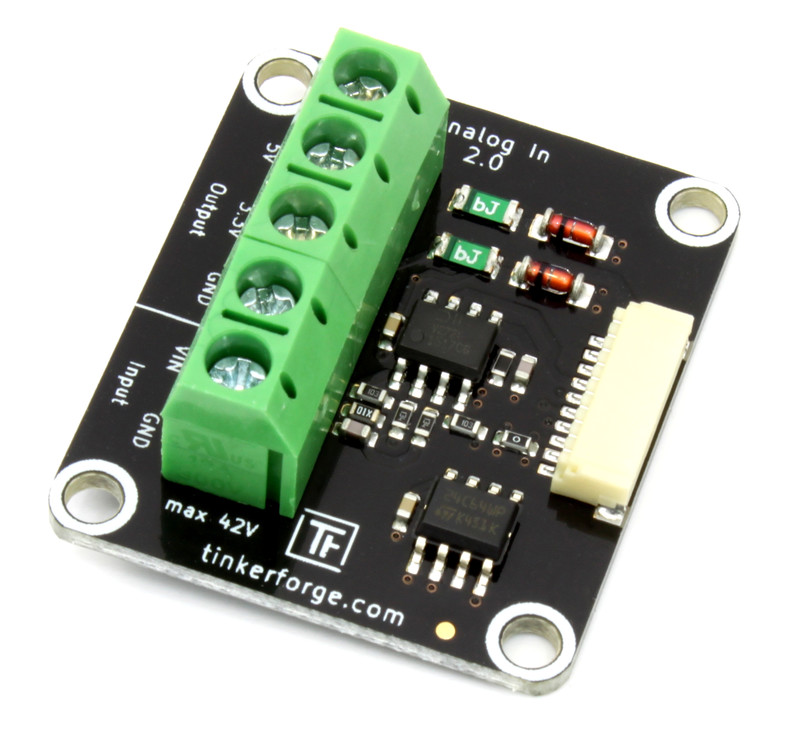
The Analog In Bricklet 2.0 can be used to extend the features of Bricks by the capability to measure voltages. It is the successor of the Analog In Bricklet. The voltage can be read out in Volt directly without conversions necessary.
With configurable events it is possible to react on changing voltages without polling.
Technical Specifications
Property |
Value |
|---|---|
Current Consumption |
30mW (6mA at 5V) |
Voltage |
0V - 42V (DC) in 1mV steps, 12bit resolution (~10mV) |
Maximum Output Current |
150mA (3.3V), 150mA (5V) |
Dimensions (W x D x H) |
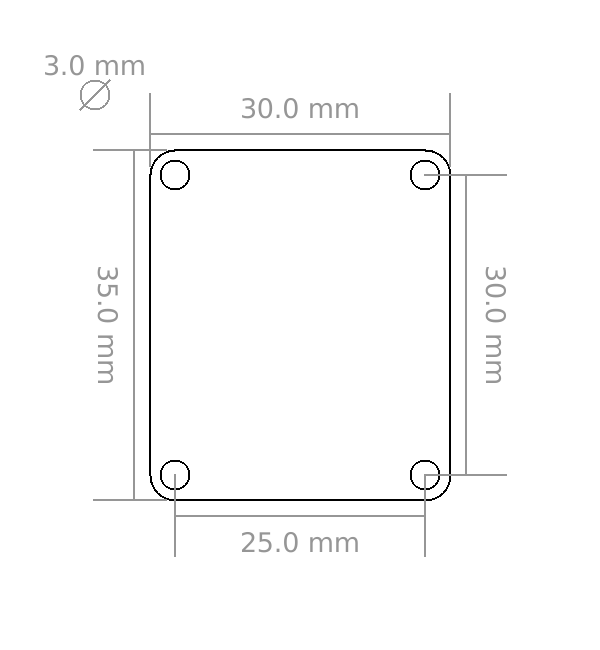
35 x 30 x 14mm (1.38 x 1.18 x 0.55") |
Weight |
8g |
Resources
Connectivity
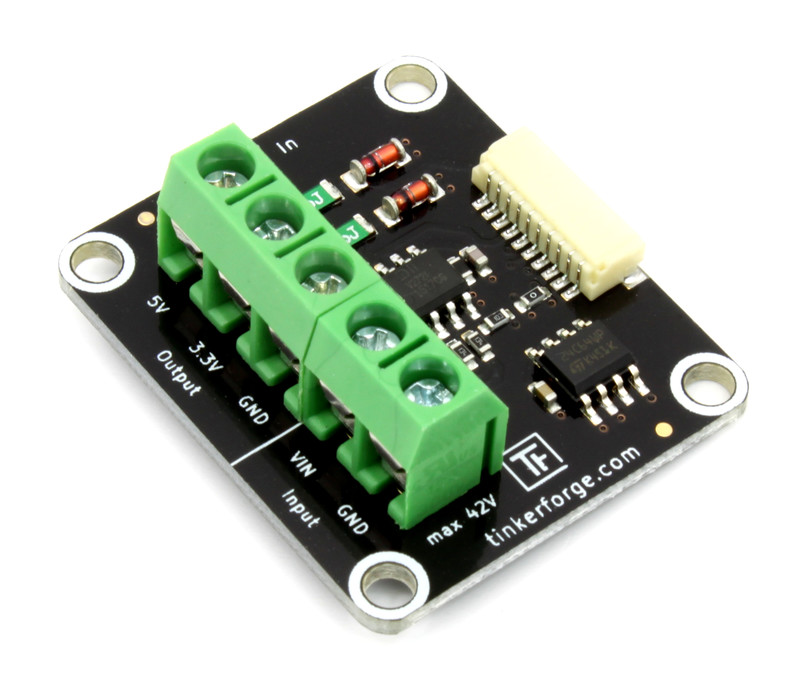
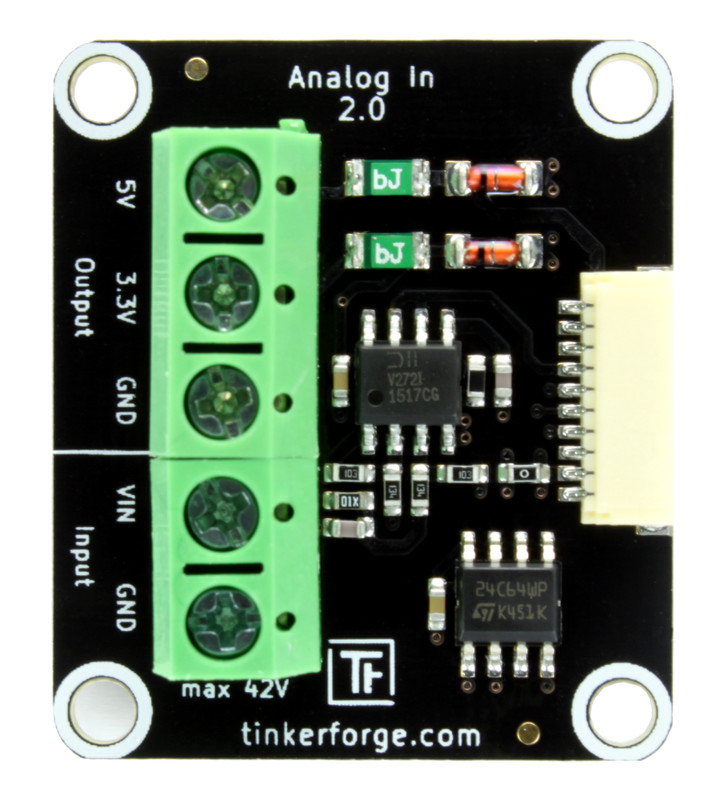
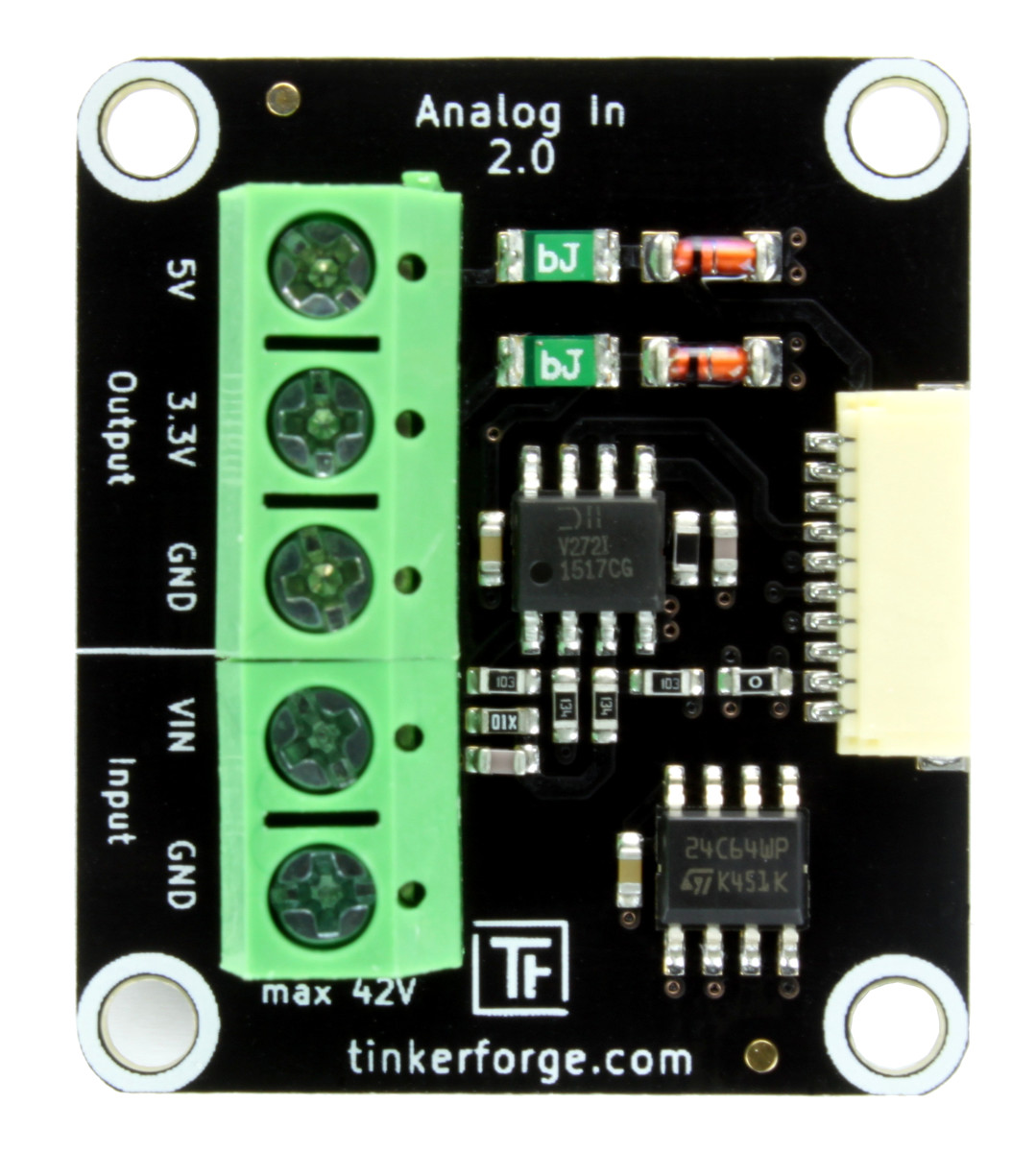
The Analog In Bricklet 2.0 has five terminals. With these terminals you can access the following output signals: 5V, 3.3V as well as GND. The voltage you want to measure can be applied between the VIN and the GND terminal.
Test your Analog In Bricklet 2.0
To test a Analog In Bricklet 2.0 you need to have Brick Daemon and Brick Viewer installed. Brick Daemon acts as a proxy between the USB interface of the Bricks and the API bindings. Brick Viewer connects to Brick Daemon. It helps to figure out basic information about the connected Bricks and Bricklets and allows to test them.
Connect the Analog In Bricklet 2.0 to a Brick with a Bricklet Cable. Additionally connect a DC voltage you want to measure to the Bricklet. For testing purposes connect the 5V or 3.3V output terminal to the VIN terminal. The GND terminals are already connected internally.
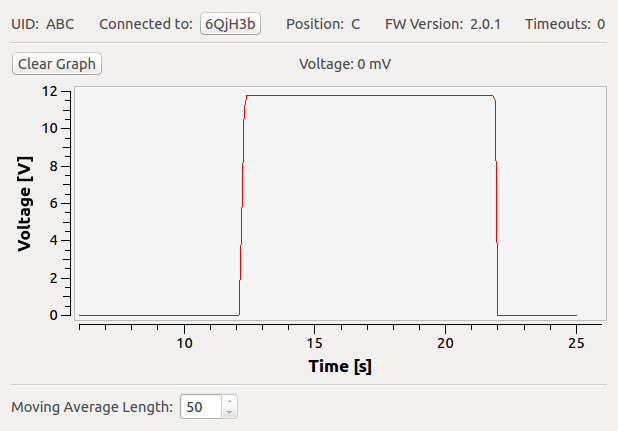
If you connect the Brick to the PC over USB, you should see a new tab named "Analog In Bricklet 2.0" in the Brick Viewer after a moment. Select this tab. If everything went as expected you can now see the voltage in Volt and a graph that shows the voltage over time.
After this test you can go on with writing your own application. See the Programming Interface section for the API of the Analog In Bricklet 2.0 and examples in different programming languages.
Case
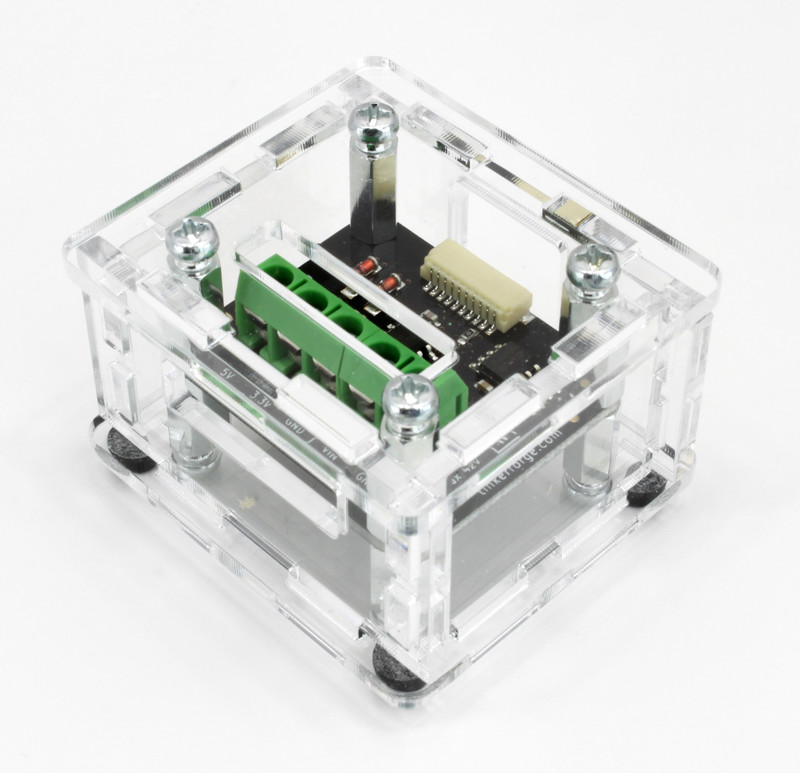
A laser-cut case for the Analog In Bricklet 2.0 is available.
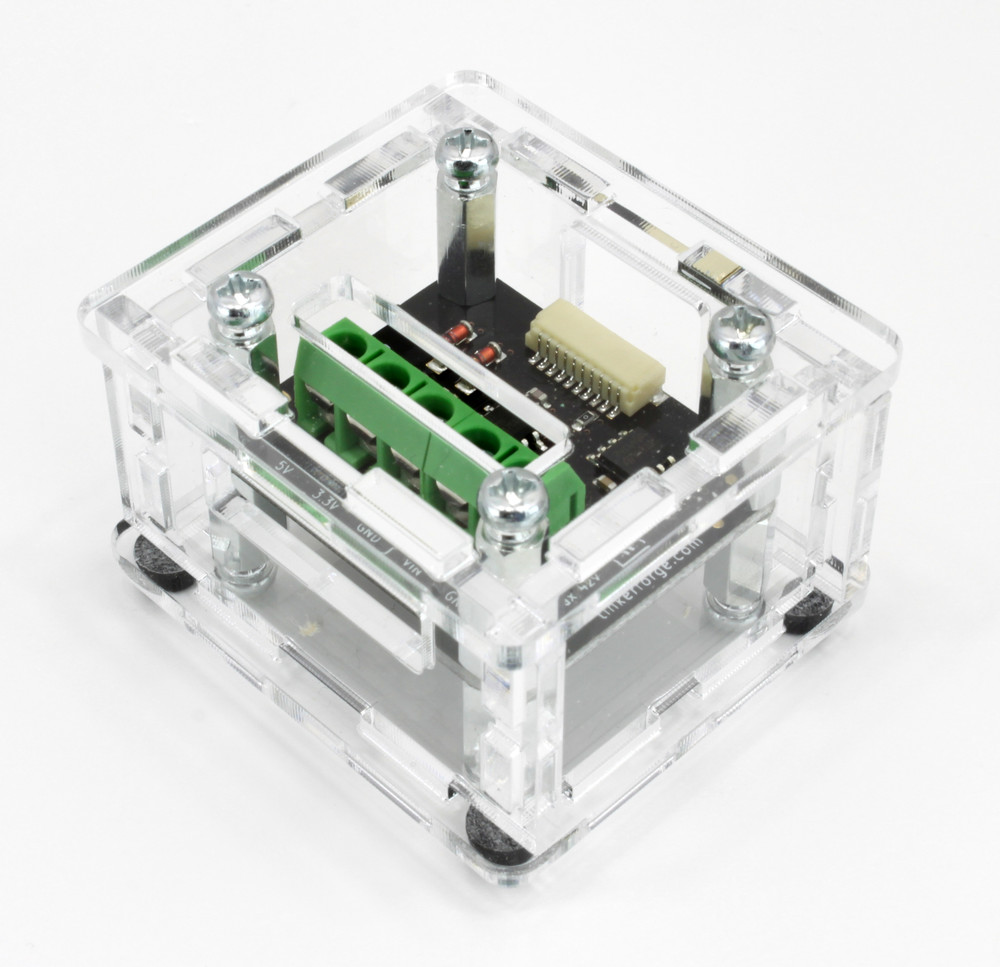
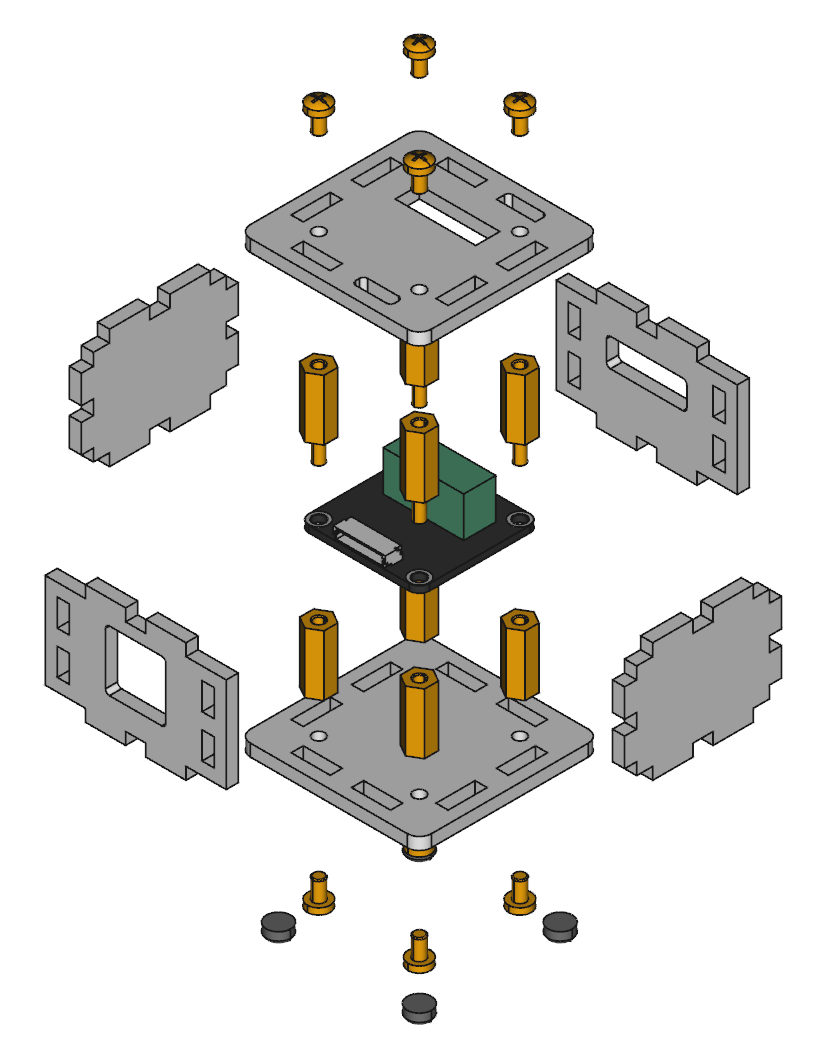
The assembly is easiest if you follow the following steps:
Screw spacers to the Bricklet,
screw bottom plate to bottom spacers,
build up side plates,
plug side plates into bottom plate and
screw top plate to top spacers.
Below you can see an exploded assembly drawing of the Analog In Bricklet 2.0 case:
Hint: There is a protective film on both sides of the plates, you have to remove it before assembly.
Programming Interface
See Programming Interface for a detailed description.
Language |
API |
Examples |
Installation |
|---|---|---|---|
C/C++ |
|||
C# |
|||
Delphi/Lazarus |
|||
Go |
|||
Java |
|||
JavaScript |
|||
LabVIEW |
|||
Mathematica |
|||
MATLAB/Octave |
|||
MQTT |
|||
openHAB |
|||
Perl |
|||
PHP |
|||
Python |
|||
Ruby |
|||
Rust |
|||
Shell |
|||
Visual Basic .NET |
|||
TCP/IP |
|||
Modbus |