


- Getting Started
- Hardware
- Bricks
- Bricklets
- Accelerometer Bricklet 2.0
- Air Quality Bricklet
- Ambient Light Bricklet 3.0
- Analog In Bricklet 3.0
- Analog Out Bricklet 3.0
- Barometer Bricklet
- Barometer Bricklet 2.0
- Breakout Bricklet
- CAN Bricklet
- CAN Bricklet 2.0
- CO2 Bricklet 2.0
- Color Bricklet
- Color Bricklet 2.0
- Compass Bricklet
- DC Bricklet 2.0
- Distance IR Bricklet
- Distance IR Bricklet 2.0
- Distance US Bricklet 2.0
- DMX Bricklet
- Dual Button Bricklet 2.0
- Dust Detector Bricklet
- E-Paper 296x128 Bricklet
- Energy Monitor Bricklet
- GPS Bricklet 2.0
- GPS Bricklet 3.0
- Hall Effect Bricklet
- Hall Effect Bricklet 2.0
- Humidity Bricklet 2.0
- IMU Bricklet 3.0
- Industrial Analog Out Bricklet 2.0
- Industrial Counter Bricklet
- Industrial Digital In 4 Bricklet 2.0
- Industrial Digital Out 4 Bricklet
- Industrial Digital Out 4 Bricklet 2.0
- Industrial Dual 0-20mA Bricklet
- Industrial Dual 0-20mA Bricklet 2.0
- Industrial Dual AC In Bricklet
- Industrial Dual AC Relay Bricklet
- Industrial Dual Analog In Bricklet 2.0
- Industrial Dual Relay Bricklet
- Industrial PTC Bricklet
- Industrial Quad Relay Bricklet 2.0
- IO-16 Bricklet
- IO-16 Bricklet 2.0
- IO-4 Bricklet 2.0
- Isolator Bricklet
- Joystick Bricklet
- Joystick Bricklet 2.0
- Laser Range Finder Bricklet 2.0
- LCD 128x64 Bricklet
- LCD 20x4 Bricklet
- LED Strip Bricklet 2.0
- Line Bricklet
- Linear Poti Bricklet
- Linear Poti Bricklet 2.0
- Load Cell Bricklet 2.0
- Motion Detector Bricklet 2.0
- Motorized Linear Poti Bricklet
- Multi Touch Bricklet
- Multi Touch Bricklet 2.0
- NFC Bricklet
- OLED 128x64 Bricklet 2.0
- OLED 64x48 Bricklet
- One Wire Bricklet
- Outdoor Weather Bricklet
- Particulate Matter Bricklet
- Performance DC Bricklet
- Piezo Speaker Bricklet
- Piezo Speaker Bricklet 2.0
- Real-Time Clock Bricklet
- Real-Time Clock Bricklet 2.0
- Remote Switch Bricklet 2.0
- RGB LED Bricklet 2.0
- RGB LED Button Bricklet
- Rotary Encoder Bricklet 2.0
- Rotary Poti Bricklet
- Rotary Poti Bricklet 2.0
- RS232 Bricklet
- RS232 Bricklet 2.0
- RS485 Bricklet
- Segment Display 4x7 Bricklet
- Segment Display 4x7 Bricklet 2.0
- Servo Bricklet 2.0
- Silent Stepper Bricklet 2.0
- Solid State Relay Bricklet 2.0
- Sound Intensity Bricklet
- Sound Pressure Level Bricklet
- Temperature Bricklet
- Temperature Bricklet 2.0
- Temperature IR Bricklet 2.0
- Thermal Imaging Bricklet
- Thermocouple Bricklet 2.0
- Tilt Bricklet
- UV Light Bricklet 2.0
- Voltage/Current Bricklet 2.0
- XMC1400 Breakout Bricklet
- Master Extensions
- Power Supplies
- Discontinued Products
- Timeline
- Software
- Kits
- Embedded Boards
- Specifications
One Wire Bricklet
Features
1-wire communication with any 1-wire capable device
Offers high-level commands (bus search, reset, write, read, write command)
Supports 3.3V, 5V and external supply voltage
Supports up to 64 1-wire devices simultaneously
Description
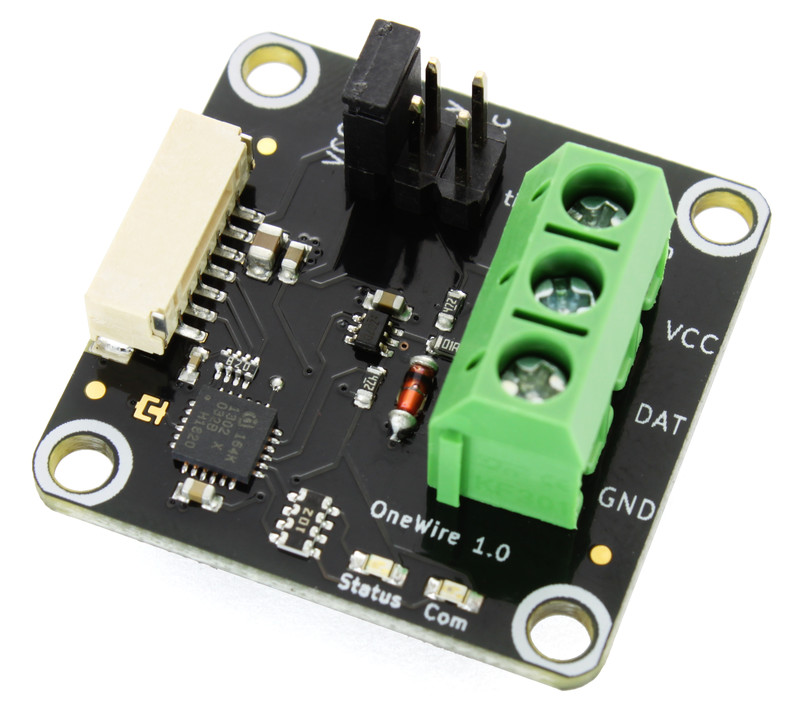
The One-Wire Bricklet can be used to communicate with any 1-wire capable device.
The API uses a set of high-level commands (bus search, reset, write, read, write command). Each command will give immediate status feedback for easy error detection.
Up to 64 devices can be connected to the bus and used at the same time.
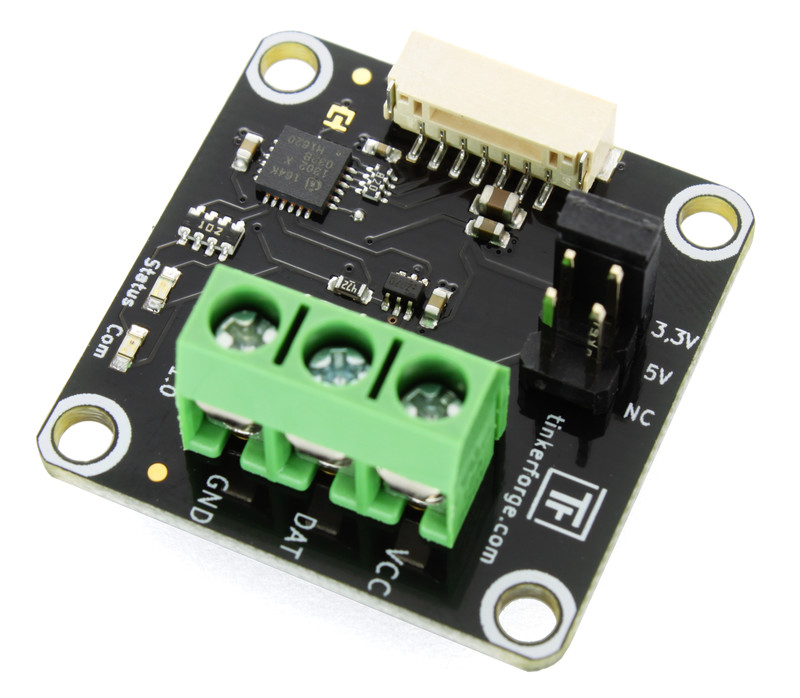
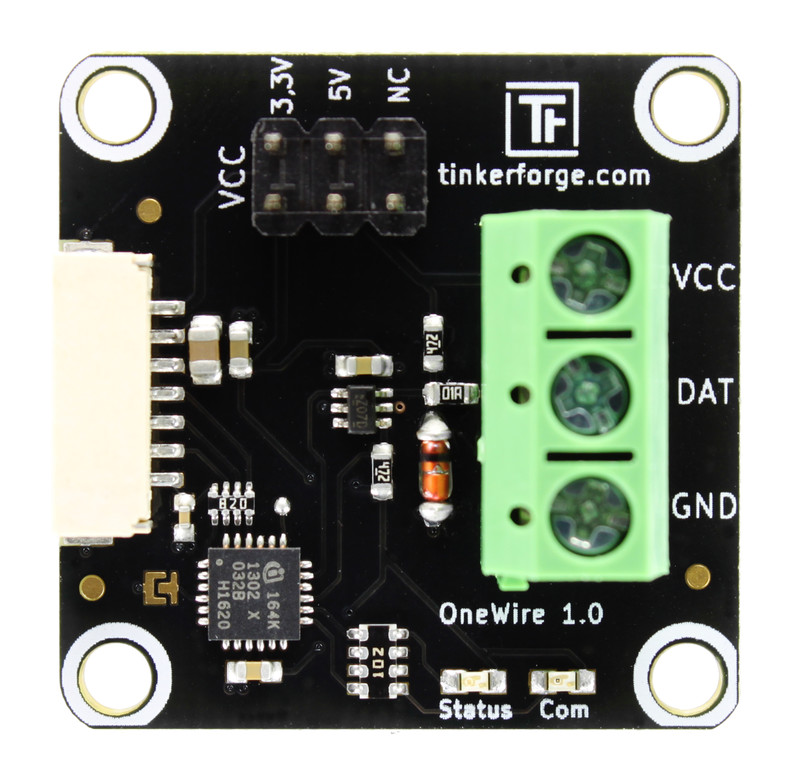
A jumper can be used to switch between 3.3V, 5V or an external supply voltage for the connected 1-wire devices.
An example application would be to read the temperature of a MAX31820 1-wire ambient temperature sensor.
This Bricklet ist not galvanically isolated to the Tinkerforge system. This means that there is a direct electrical connection between the terminals of the Bricklet and the rest of the system. Dependent of the application this can lead to undesired connections, ground loops or short circuits. These problems can be prevented by using the Bricklet together with a Isolator Bricklet.
Technical Specifications
Property |
Value |
|---|---|
Current Consumption |
35mW (7mA at 5V) |
Maximum Bus Size |
64 |
Supported Voltage |
3.3V, 5V and external supply |
Commands |
bus search, reset, write, read, write command |
Dimensions (W x D x H) |
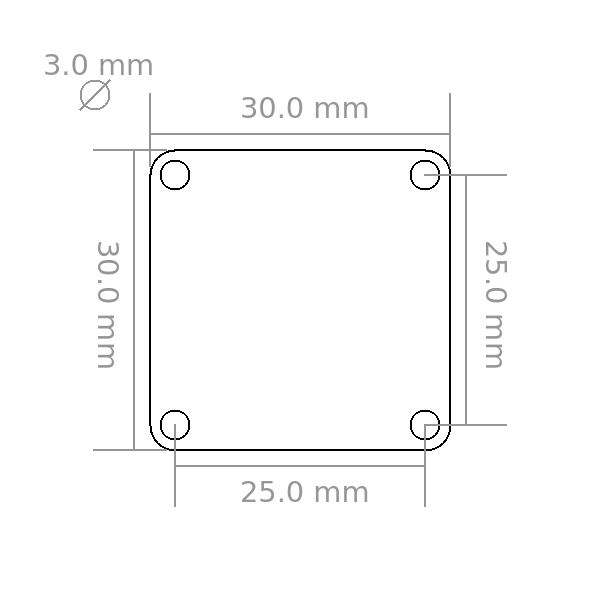
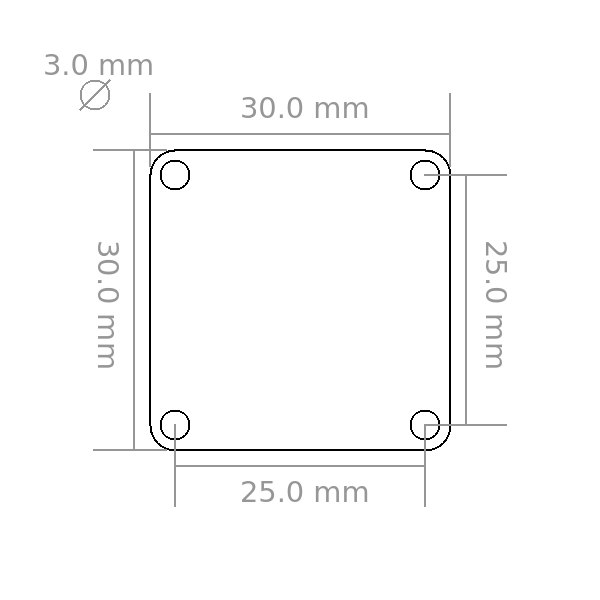
30 x 30 x 14mm (1.18 x 1.18 x 0.55") |
Weight |
6.5g |
Resources
Connectivity
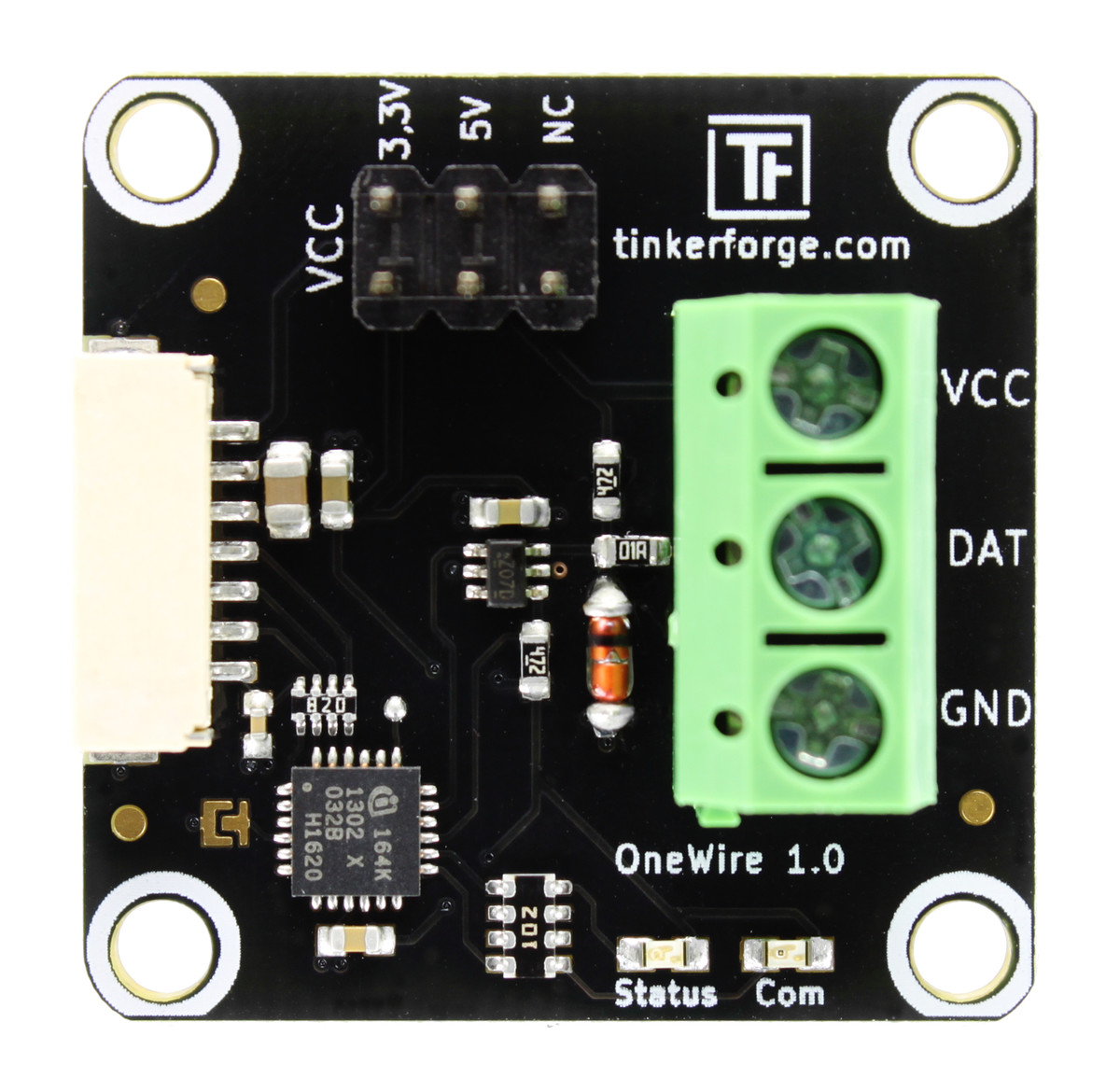
You can connect any 1-Wire device to the VCC/DAT/GND (voltage, data, ground) pins.
The jumper can be used to switch the supply voltage applied to VCC between 3.3V and 5V. If the jumper is set to NC, you can connect an external power supply to VCC. If you want to use an external power supply, you can not put the jumper on the 3.3V/5V pin headers.
Example: MAX31820
The following example uses Python to read the temperature of a MAX31820 temperature sensor with the API of the One Wire Bricklet:
ow.write_command(0, 0x4E)     # WRITE SCRATCH PAD
ow.write(0x00)                # ALARM H (unused)
ow.write(0x00)                # ALARM L (unused)
ow.write(0x7F)                # CONFIGURATION: 12 bit mode

while True:
    ow.write_command(0, 0x44) # CONVERT T (start temperature conversion)
    time.sleep(1)             # Wait for conversion to finish

    ow.write_command(0, 0xBE) # READ SCRATCH PAD

    t_low = ow.read().data    # Read LSB
    t_high = ow.read().data   # Read MSB

    print('Temperature: {0} °C'.format((t_low | (t_high << 8)) / 16.0))
Test your One Wire Bricklet
To test a One Wire Bricklet you need to have Brick Daemon and Brick Viewer installed. Brick Daemon acts as a proxy between the USB interface of the Bricks and the API bindings. Brick Viewer connects to Brick Daemon. It helps to figure out basic information about the connected Bricks and Bricklets and allows to test them.
Connect the One Wire Bricklet to a Brick with a Bricklet Cable and connect a 1-wire device to the Bricklet.
If you connect the Brick to the PC over USB, you should see a new tab named "One Wire Bricklet" in the Brick Viewer after a moment. Select this tab. If everything went as expected you can now use Brick Viewer to communicate with a connected 1-wire device.
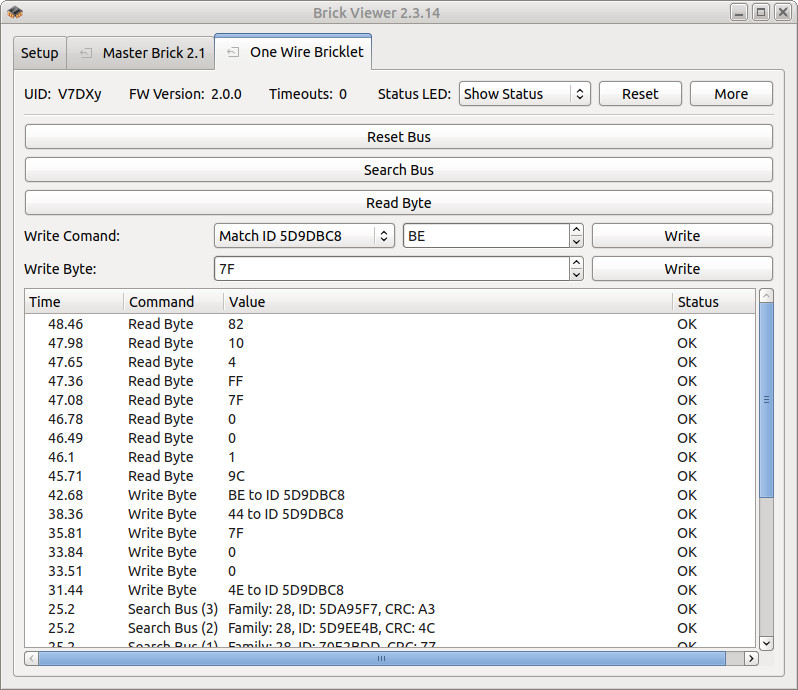
After this test you can go on with writing your own application. See the Programming Interface section for the API of the One Wire Bricklet and examples in different programming languages.
Case
A laser-cut case for the One Wire Bricklet is available.
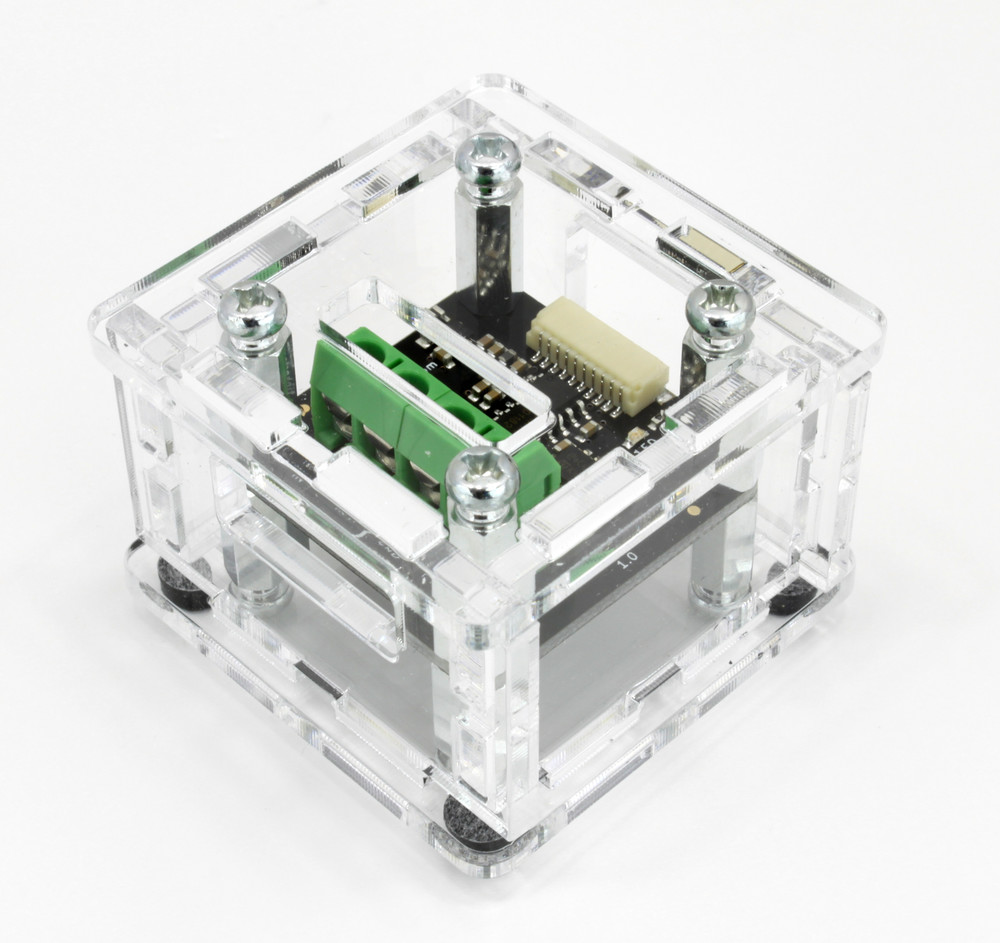
The assembly is easiest if you follow the following steps:
Screw spacers to the Bricklet,
screw bottom plate to bottom spacers,
build up side plates,
plug side plates into bottom plate and
screw top plate to top spacers.
Below you can see an exploded assembly drawing of the One Wire Bricklet case:
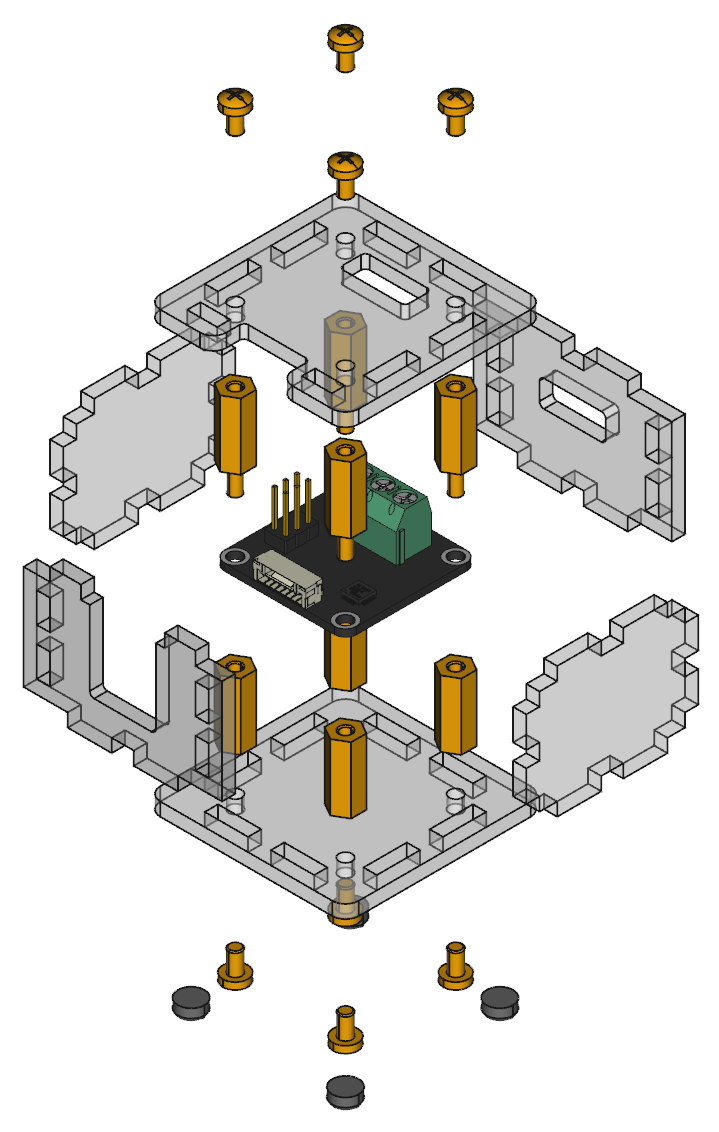
Hint: There is a protective film on both sides of the plates, you have to remove it before assembly.
Programming Interface
See Programming Interface for a detailed description.
Language |
API |
Examples |
Installation |
|---|---|---|---|
C/C++ |
|||
C/C++ for Microcontrollers |
|||
C# |
|||
Delphi/Lazarus |
|||
Go |
|||
Java |
|||
JavaScript |
|||
LabVIEW |
|||
Mathematica |
|||
MATLAB/Octave |
|||
MQTT |
|||
openHAB |
|||
Perl |
|||
PHP |
|||
Python |
|||
Ruby |
|||
Rust |
|||
Shell |
|||
Visual Basic .NET |
|||
TCP/IP |
|||
Modbus |